

Find the page
In the affiliate portal, go to Settings, open the Advanced tab, and select Postback URL. Next to it is Postback Guide, with setup instructions for popular trackers (see Use the Postback Guide).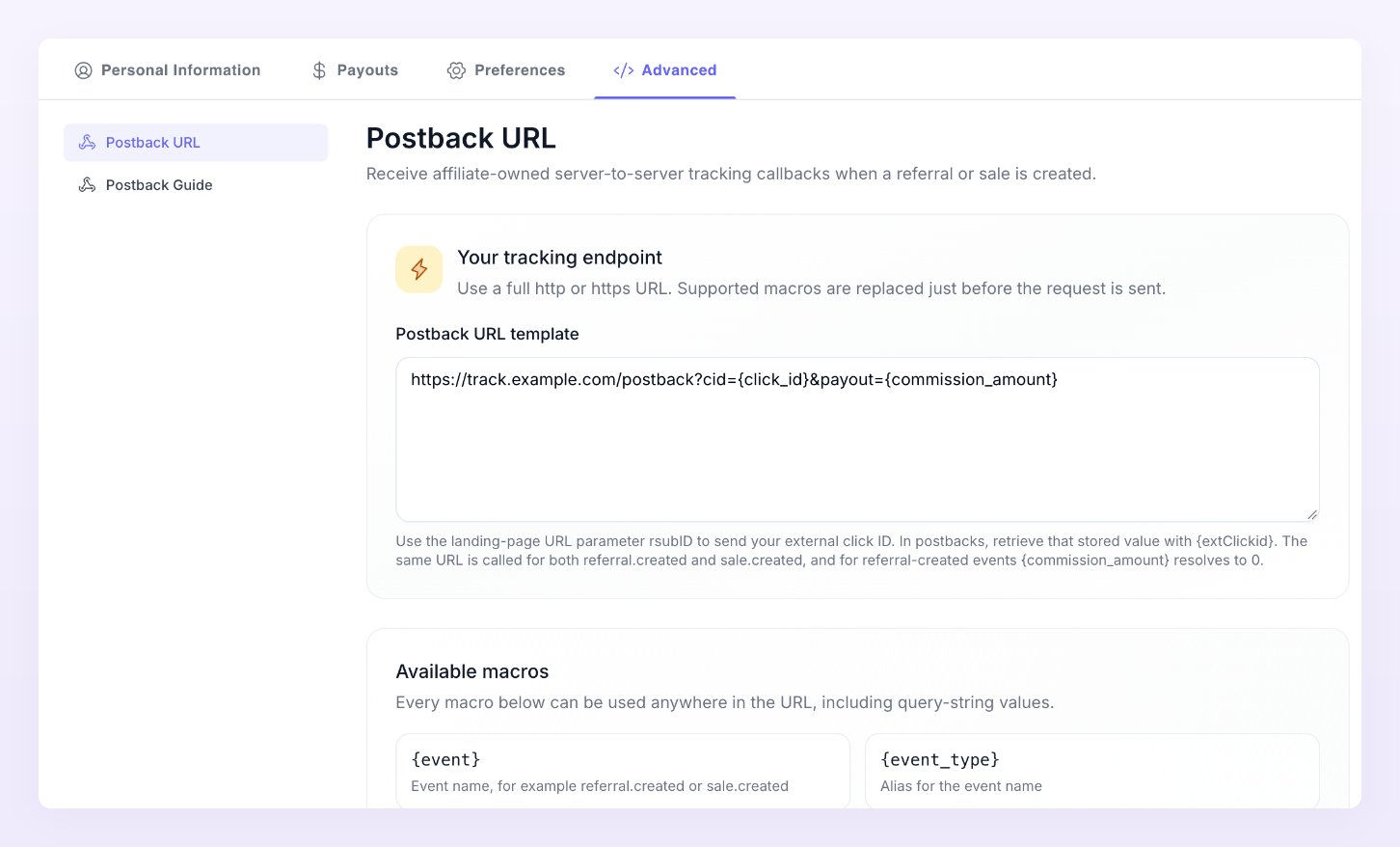
Save your tracking URL
Generate a postback URL in your tracking platform, paste it into the Postback URL template box, and select Save Postback URL. You’ll see Postback URL saved when it’s stored.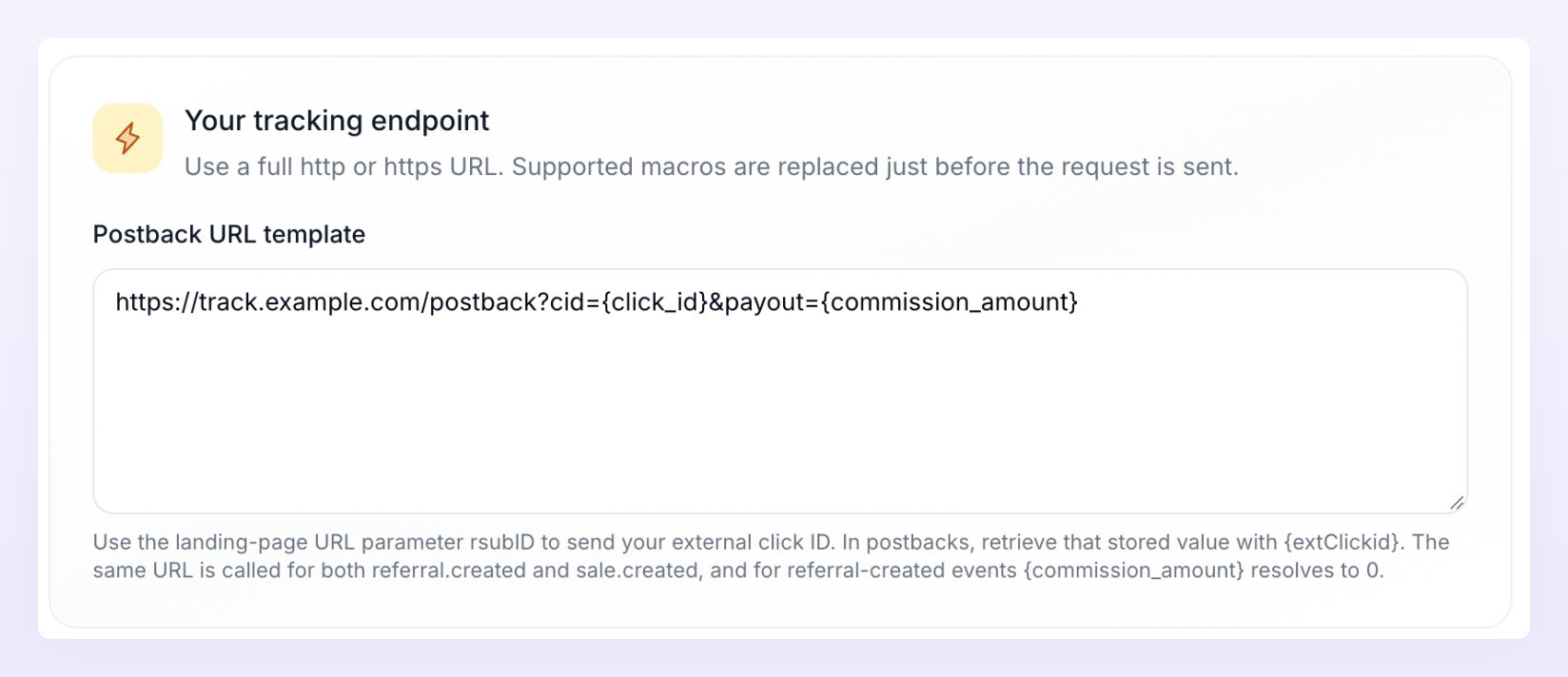
- It has to be a full address starting with
httporhttps. A partial path won’t save. - Anywhere you want Referly to fill in a real value, put a macro in curly braces. Referly swaps each one for the actual value just before it makes the call, including inside query-string values.
your-token.
To turn postbacks off again, clear the box and save.
Pass your own click ID through
This is the part that makes attribution work, and the part people most often miss. Your tracker needs to know which of your clicks turned into this conversion. Referly can hand that back to you, but only if you sent it in the first place. AddrsubID to your referral link and put your tracker’s click ID placeholder in it. If your placeholder is wct_click_id, your link looks like this:
rsubID against that click. Later, when the postback fires, {extClickid} in your URL resolves back to that same value — and your tracker matches the conversion to the right click.
Know which macros you can use
The page lists every available macro in an Available macros panel, each with a short description.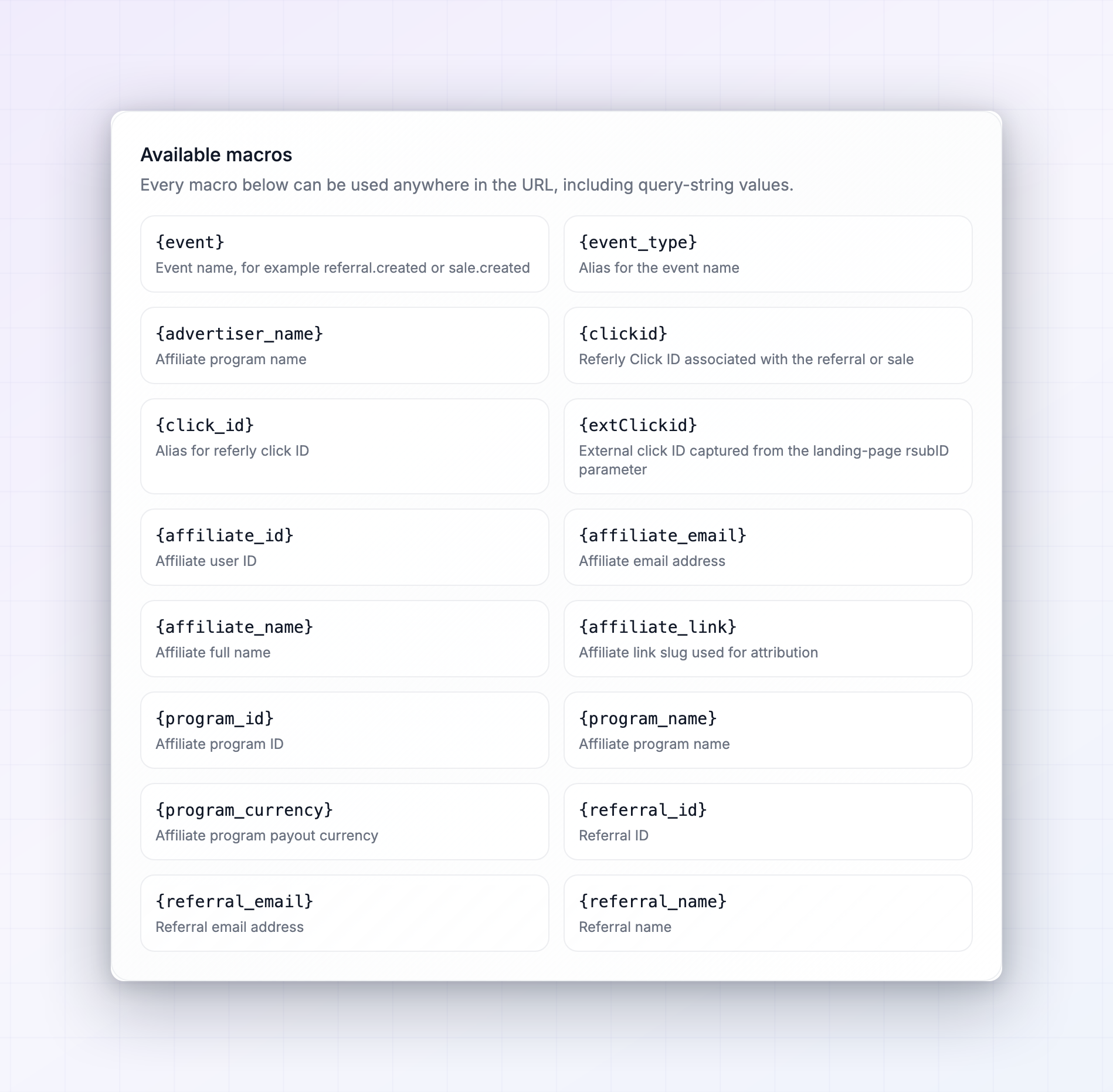 These are the ones you’ll reach for most:
There are more on the page — external IDs, tax and shipping amounts, commission rate and type, reward type, and separate timestamps for the referral and the sale. Use the ones your tracker actually needs and leave the rest out; a shorter URL is easier to debug.
A macro with no value simply resolves to nothing rather than breaking the call.
Understand when it fires
The same URL is called for two events, and it’s worth knowing the difference:1
referral.created
Someone signs up through your link. There’s no money attached yet, so
{commission_amount} comes back as 0. Handle this in your tracker as a lead, not a sale — otherwise you’ll be counting zero-value conversions as revenue.2
sale.created
A referral turns into an actual sale. This is the one carrying real commission, sale amount and product data.
{event} to tell them apart on your end.
Referly calls your URL as a normal web request and follows redirects. It gives up after ten seconds, so if your endpoint is slow to answer you may lose events — point the postback at your tracker’s own endpoint rather than something that does heavy work before responding.
Use the Postback Guide
The Postback Guide page, next to Postback URL under Settings and Advanced, has step-by-step guides for three tracking platforms that support server-to-server postbacks: WecanTrack, AnyTrack and RedTrack. Select a card, or its Instructions button, to open that guide. The example links in each guide are built from your own referral links, so you can copy them as they are.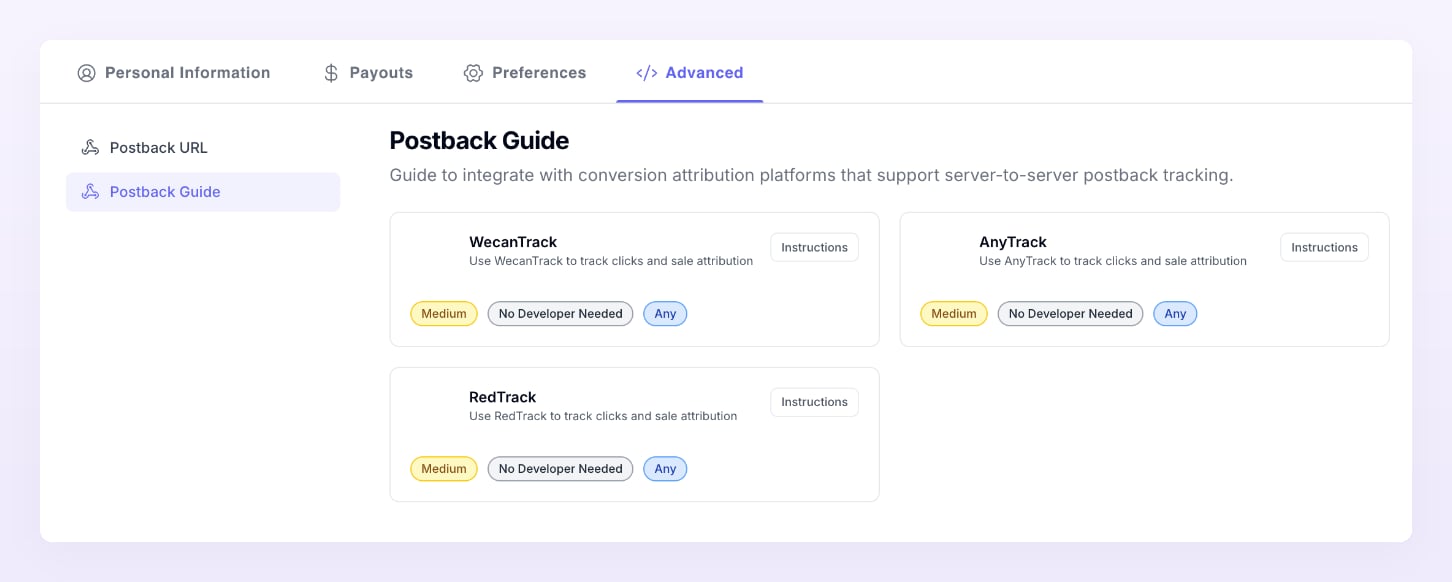
rsubID:
Set it up with WeCanTrack
- In WecanTrack, under Data sources, select Affiliate Networks and choose Referly (type it in the search bar to find it quickly).
- Select Create Account and give it any name, then select Create Postback URL. Keep the URL it generates for the last step.
- Under Data sources, select Websites and add your website if it isn’t set up yet.
- Tag your referral links. WecanTrack lets you choose a Click ID placeholder, and whichever you use has to be carried in
rsubID. With the default placeholder, add&rsubID={wct_click_id}to the end of your link. - Paste the generated postback URL on the Postback URL page and save it.
Set it up with AnyTrack
- Create a property in AnyTrack if you don’t have one, with your website URL, timezone and reporting currency. Use the same currency as the program.
- Install the AnyTrack tag on your website, add UTM tracking parameters to your ads and connect your ad account. The guide links to AnyTrack’s own instructions for each.
- Tag your referral links by adding
&rsubID=--CLICK-ID--to the end. - In AnyTrack, go to Integrations, install Custom Integrations to set up Referly as a conversion source, and map the macros from the Postback URL page to AnyTrack’s placeholders.
- Select Save in AnyTrack to generate the postback URL, then paste it on the Postback URL page and save it.
Set it up with RedTrack
- Add a custom tracking domain in RedTrack: point a CNAME record at your RedTrack default domain, then add it under Tools and Domains and turn on the free SSL option.
- Connect Referly as an offer source (new, from scratch). Set the clickId macro to
{extClickid}and the sum macro to{commission_amount}, then paste the postback URL RedTrack generates on the Postback URL page and save it. - Under Offers, create a new offer, choose the offer source from the previous step, and use your referral link as the offer URL with
&rsubID={clickid}added to the end. - Set up your traffic channels, add a landing page if you have one, and create your tracking campaign. The guide links to RedTrack’s help for each.
rsubID, and map their parameters to Referly’s macros.
Conversions aren’t reaching your tracker
Work through these in order.Your click ID isn't coming back
Your click ID isn't coming back
If conversions arrive but land unattributed, the click ID never got stored. Load your own referral link in a browser and check the address really carries
rsubID with a value in it — trackers sometimes strip or rename parameters when they rewrite links. Then confirm your postback URL uses {extClickid} and not some other macro.Nothing arrives at all
Nothing arrives at all
Take the URL you saved, replace the macros with test values by hand, and open it in a browser. If your tracker doesn’t register that, the problem is at their end or in the URL itself, not in Referly. Also check you saved it in the right program — the setting is per program.
You're seeing conversions with no value
You're seeing conversions with no value
Those are almost certainly signup events, where
{commission_amount} is 0 by design. Split them out using {event}.Numbers don't match your portal
Numbers don't match your portal
Postbacks fire when an event is created, which is before the brand has approved the commission. A sale that’s later declined or refunded still generated a postback. Use
{approval_status} if you need to reflect that in your own reporting.Related
Referral links
The links you’ll be adding
rsubID to.My programs
Set this up separately per program.
Getting paid
What happens to a commission after the postback fires.
Postback URLs for developers
The technical reference.